
Both standards are supported by every model in this comparison.
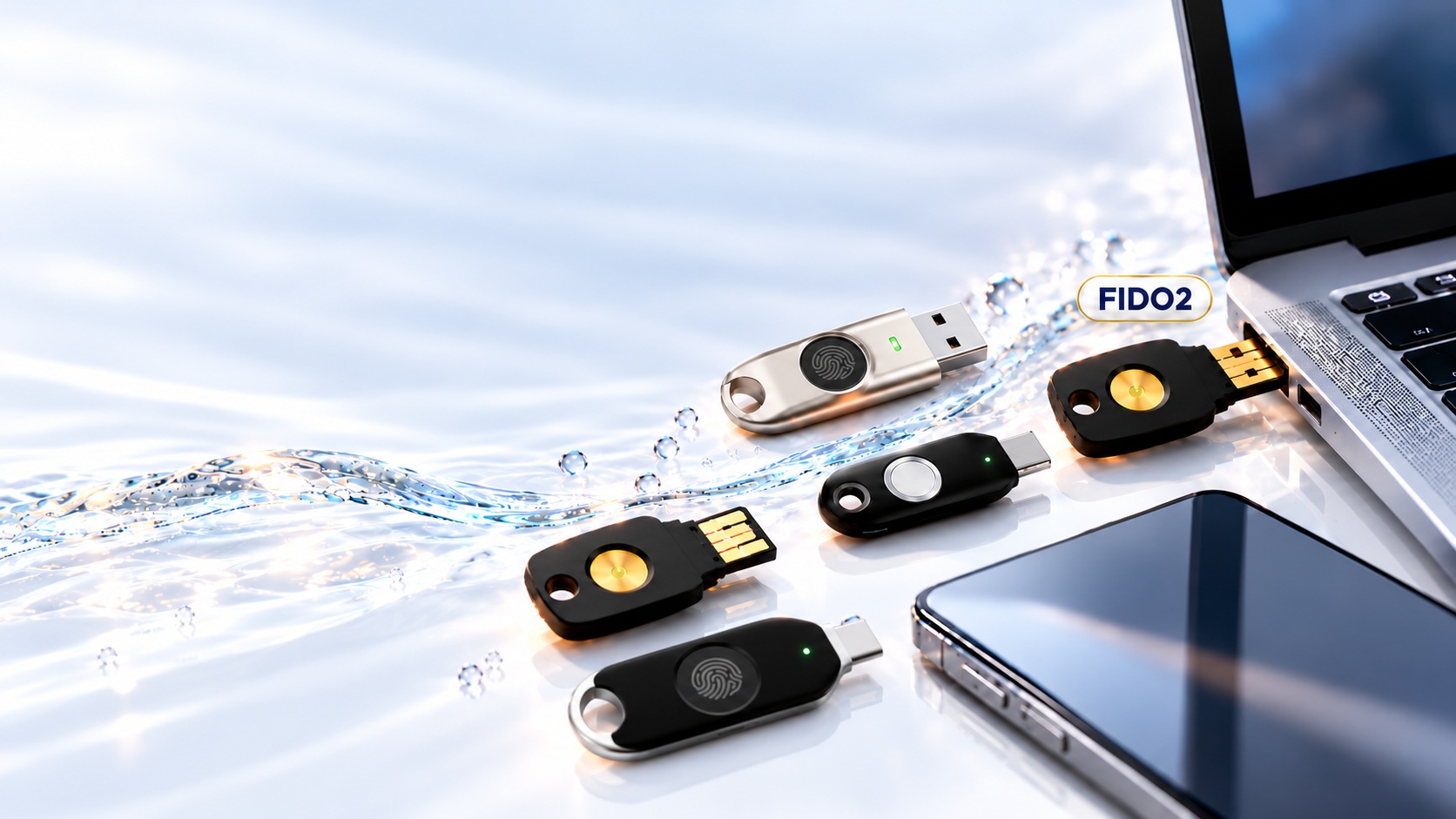
Choose the connector that fits your computer.
Tap to authenticate on a compatible phone.
The CyberLion perspective
Strong protection.
A simpler workday.
Phishing-resistant sign-ins, without adding complexity for employees.ePass keys add a physical layer of authentication to your sign-in process. Choose a model based on your computer’s port and your need for phone access, then bring strong protection into everyday work.
Find your perfect fit
Which ePass is right for you?
Answer two quick questions for a recommendation based on your computer and phone.
1. Computer connection2. Phone access
Which port does your computer have?
Will you also use your key with a phone?
Open the full comparison tableClick to compare K9B, K40 and A4B
| Feature | 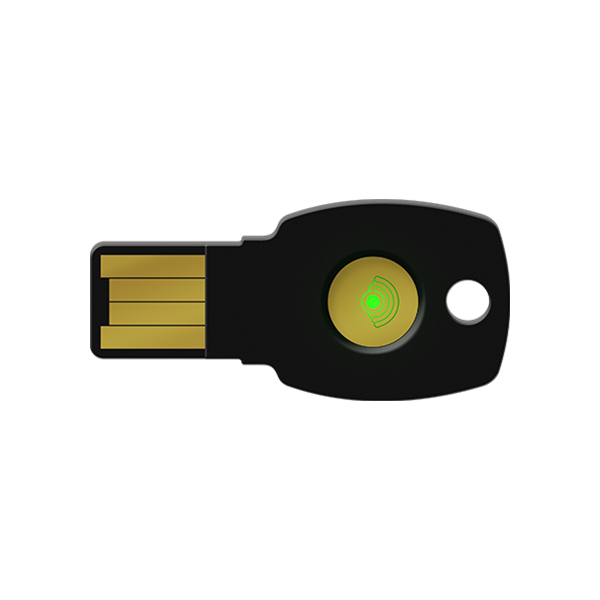 K9BePass FIDO-NFCUSB-A + NFC | 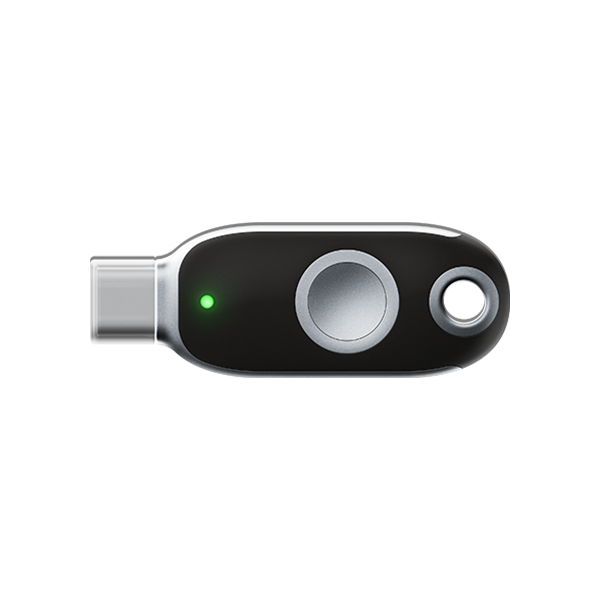 K40ePass FIDO-NFCUSB-C + NFC | 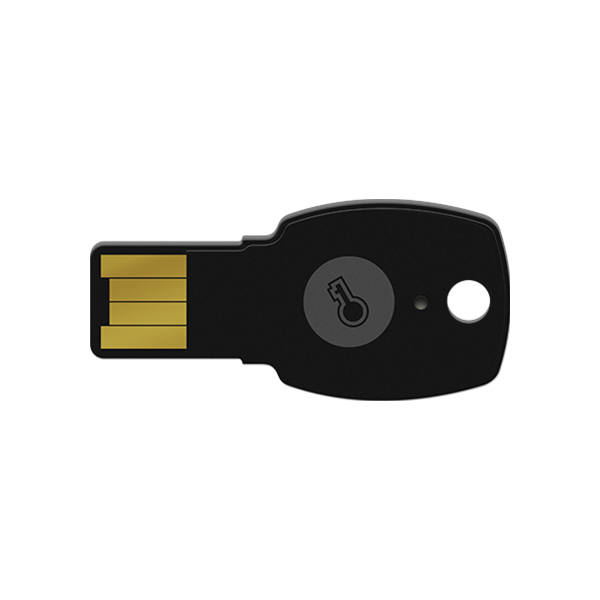 A4BePass FIDOUSB-A |
|---|---|---|---|
| USB-A connection | Supported | Not included | Supported |
| USB-C connection | Not included | Supported | Not included |
| NFC for phone | Supported | Supported | Not included |
| FIDO2 | Supported | Supported | Supported |
| FIDO U2F | Supported | Supported | Supported |
| Best for | A computer with USB-A and an NFC-enabled phone | A newer computer with USB-C and an NFC-enabled phone | A computer with USB-A |
Found your match?Continue to the online store to get your ePass security key.
Shop onlineOne key. Three simple steps.
How to sign in
The steps vary slightly by service, but the idea is simple: connect or tap your key, then approve the sign-in.
Choose a service
Sign in to your account or add a security key in its settings.
Connect or tap
Plug the key into your computer, or tap it on a compatible phone to use NFC.
Approve sign-in
Confirm with your key and follow the on-screen instructions.
For businesses and organizations
Strong authentication. A simple experience for employees.
Choose a model based on your organization’s devices, ports, and deployment needs.