

Secure remote support, simply connected
Remote Support.Always in Control.
Connect your support team to the remote computer. Help users, resolve issues and manage access to systems — with straightforward tools and deployment options that fit your organization.
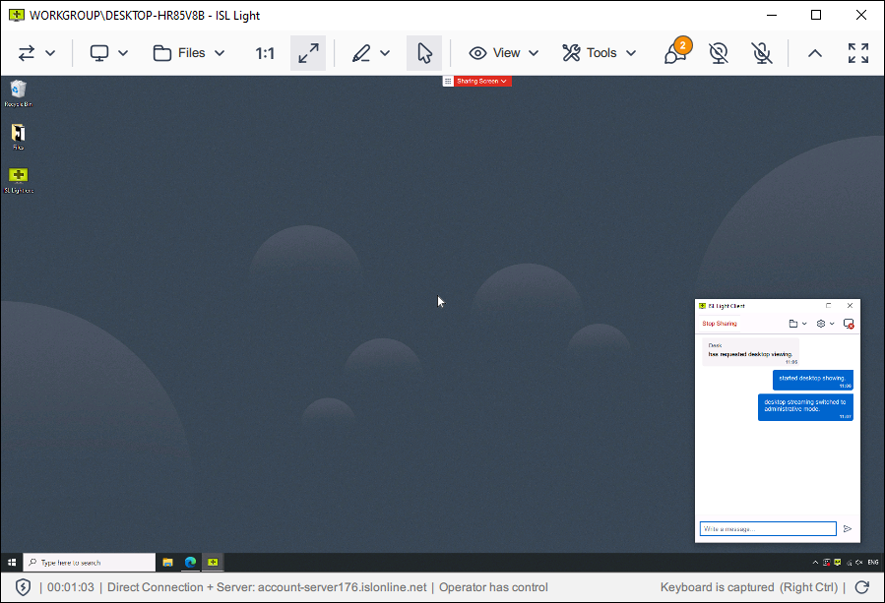
Support operator → remote computer
Client joins · example
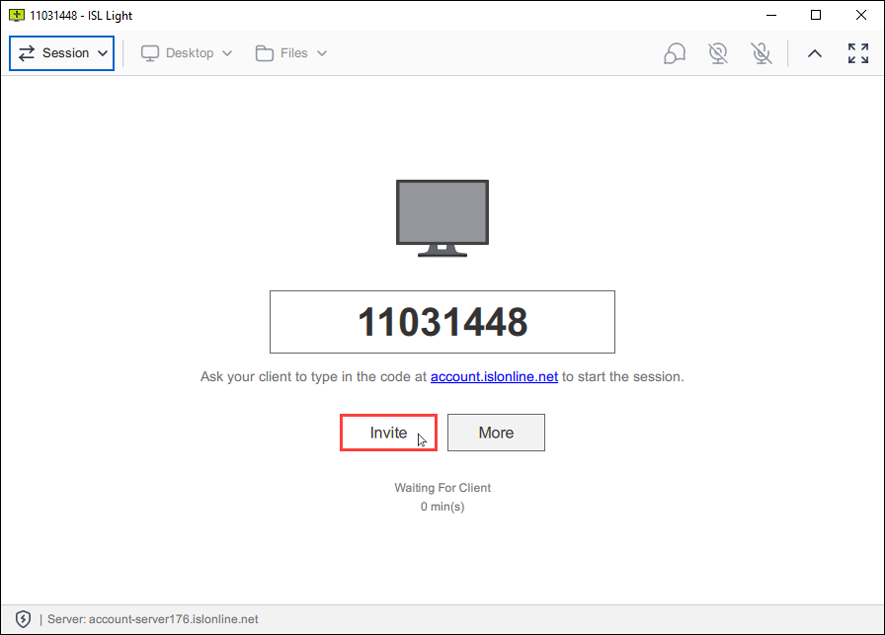
Original interface screenshots from official ISL Online documentation.
01 / CONNECT
Three steps. And you’re there.
Select a step to follow the journey from invitation to resolution.
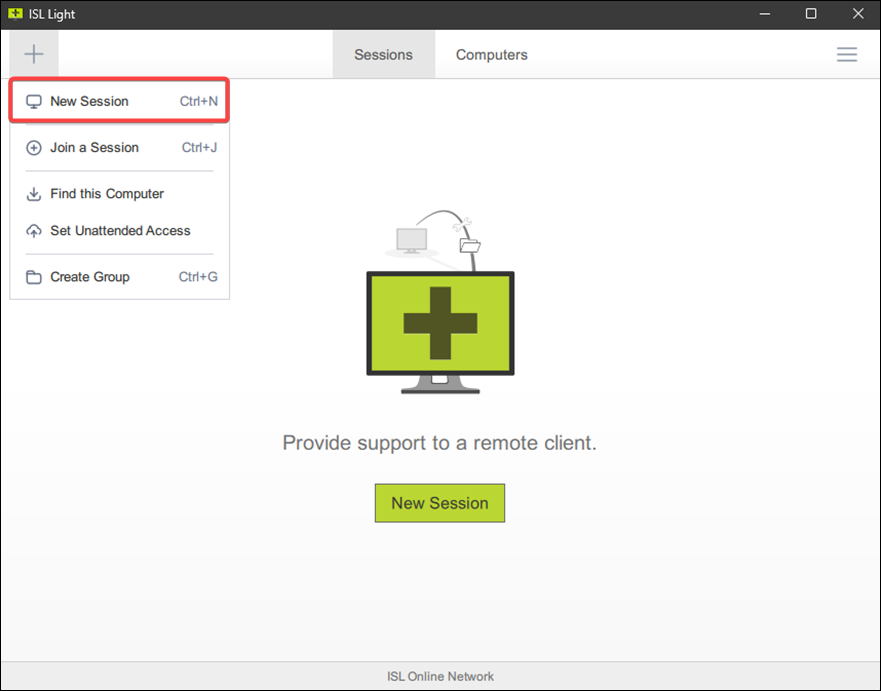
DEMO 000Example code only — inactive
DEMO 000Example code only — inactive
DEMO 000Example code only — inactive
Illustration only. Codes in documentation screenshots are inactive. This page does not connect to your computer.
02 / WORKSPACE
Your support tools. One connection.
Choose a tool to see its interface and what it helps you do.
See the screen. Solve the issue.
View and control a remote computer with the appropriate permissions, with support tools in one toolbar.
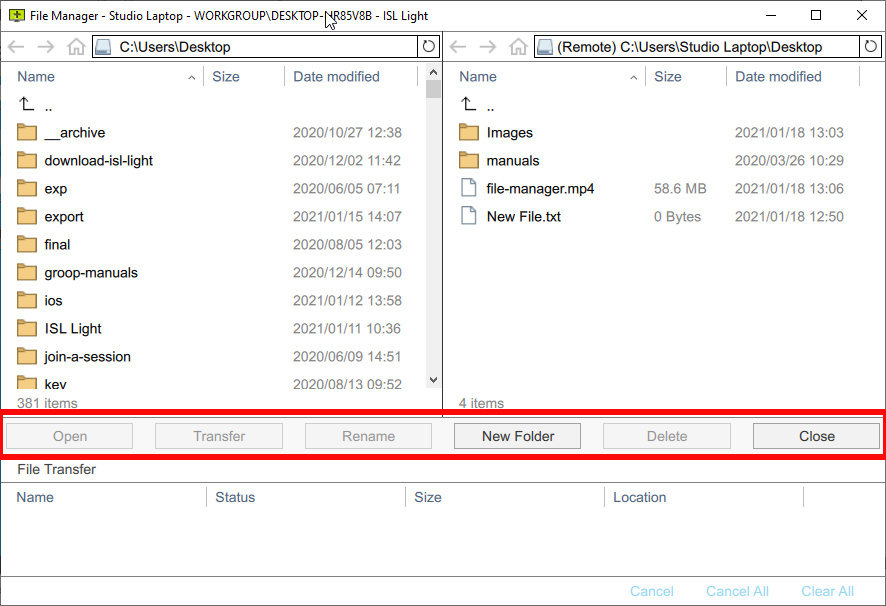
Get files where they need to be.
Move files and manage folders between local and remote computers in a dual-panel file manager.
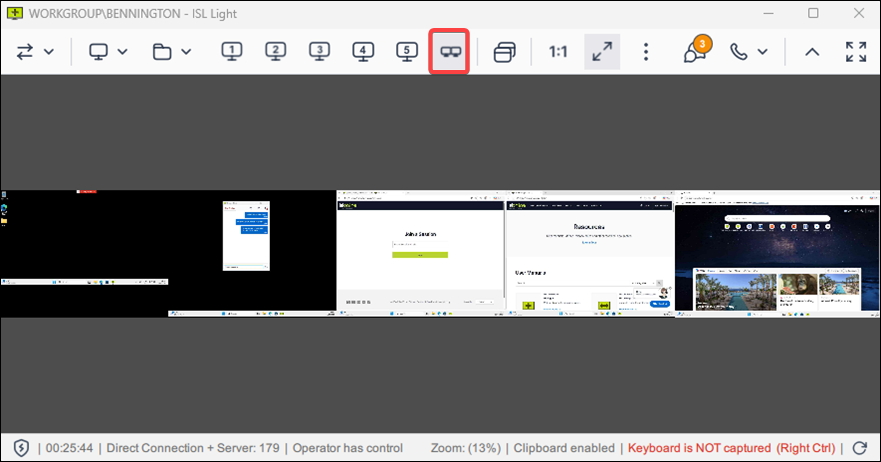
See the whole picture.
Switch remote monitors, view them together or open them in separate windows.
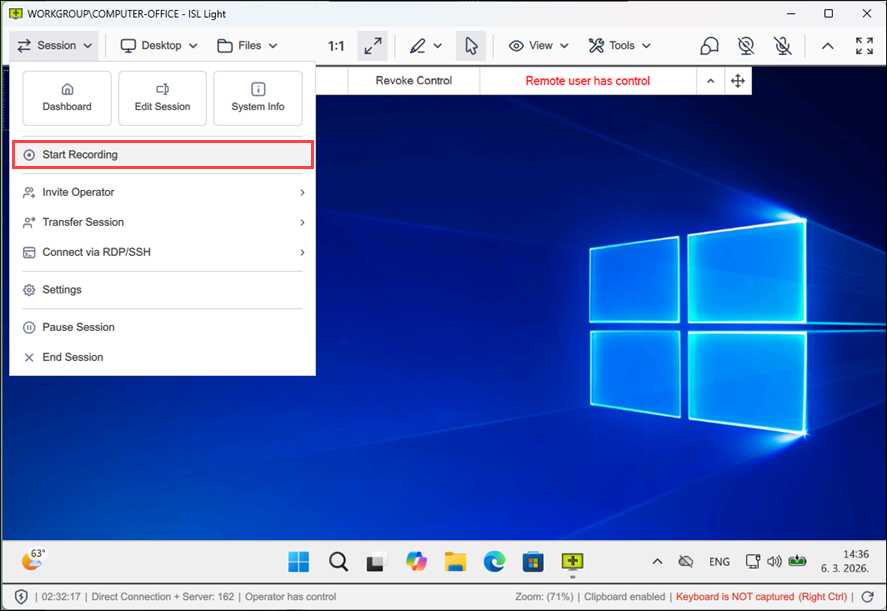
Review the moments that matter.
Record support sessions for documentation and review, according to recording settings and your organization’s policies.
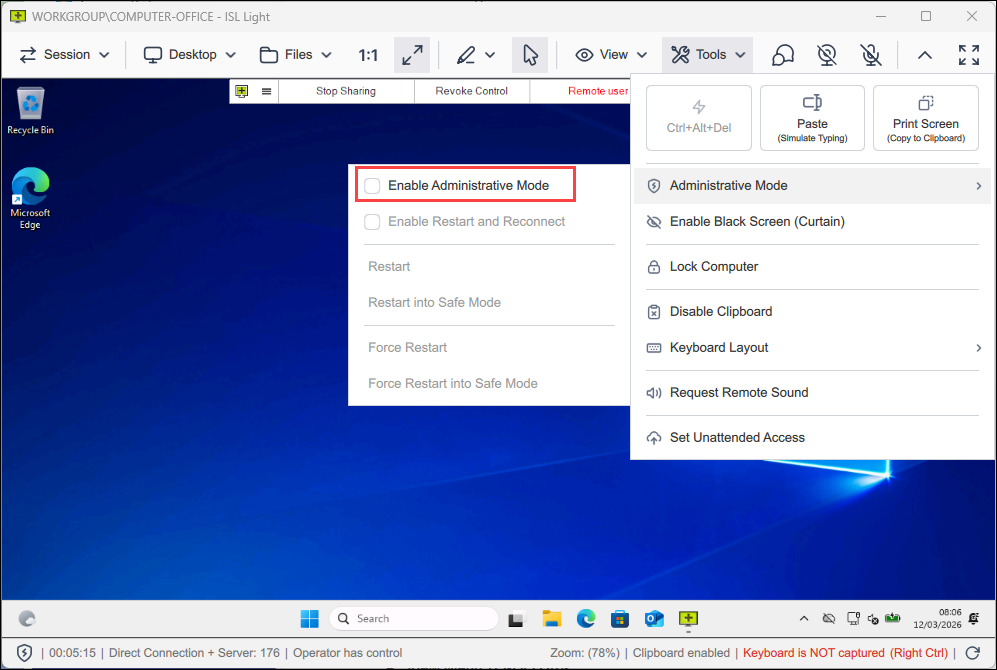
Administrative tasks. Appropriate permissions.
Elevate permissions on a Windows computer to interact with UAC and perform administrative tasks. Administrator credentials and appropriate approval are required.
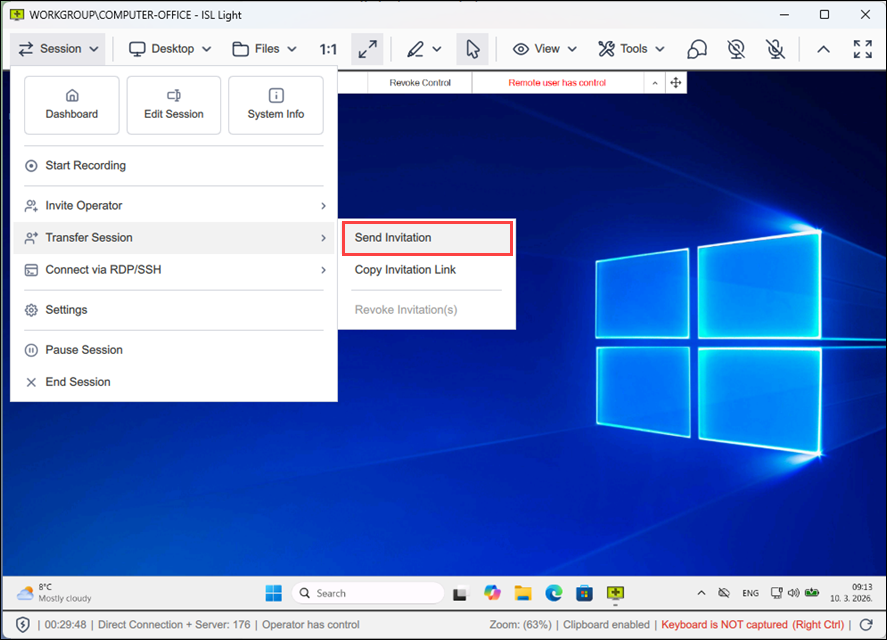
Bring in the right person.
Transfer a support session to another operator through an invitation so the appropriate colleague can continue.
Availability depends on operating system, software version, permissions and plan. Administrative Mode is for Windows computers.
03 / TWO WAYS TO CONNECT
Immediate support or ongoing access. Your choice.
Remote Support
Someone needs help right now?
Start a session, share an invitation and let the client join. Help in real time with screen viewing and control based on permissions.
Support operatorInvitation or codeClientSupport session
Unattended Access
Keep computers within reach.
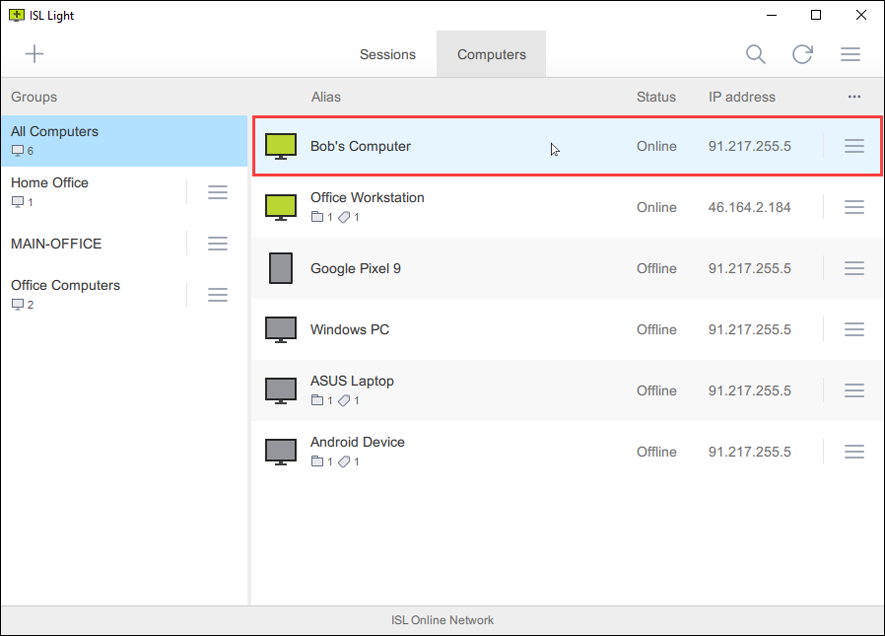
Set up ISL AlwaysOn and access permissions in advance. Then select a device from your computer list and connect using the configured authentication method.
Computer groupsSelect a deviceAuthenticateRemote management
Helpdesk
Help a user who requests assistance and work through the issue together.
IT Administration
Maintain and access company computers with the appropriate permissions.
Remote Workforce
Support remote staff and provide authorized access to office computers.
User, device and concurrent connection allowances depend on the selected licensing plan.
04 / SECURITY BY LAYERS
Remote access that respects your security policy.
User identity, an encrypted connection and access management. Three layers to consider together.
Explore the vendor’s security details- 01
Identity
Two-factor authentication, password policies and SSO/SAML options in eligible plans and configurations.
- 02
Secure Session
Session content is encrypted end to end with AES 256-bit and secure key exchange mechanisms.
- 03
Administration
User and computer permissions, activity logs and audit tools, according to configuration and policy.
Vendor certifications apply to the scope described in their documentation. Your deployment’s requirements are assessed separately.
05 / DEPLOY YOUR WAY
Your cloud. Your servers. Your choice.
Three deployment options. Select one to see the difference.
Start with a managed cloud service.
Use the ISL Online cloud service without managing your own ISL server.
- Vendor-managed service infrastructure
- For teams that prefer a ready-to-use service
Support operatorRemote computer
ISL Online CloudService infrastructure managed by the vendor
Conceptual deployment diagram
Keep control of your server environment.
Install ISL Conference Proxy on infrastructure managed by your organization.
- Control server configuration and system policies
- For organizations that manage infrastructure and maintenance
Support operatorRemote computer
ISL Conference ProxyYour infrastructure · your administration
Conceptual deployment diagram
Dedicated environment. Managed service.
A dedicated ISL environment planned and managed with the vendor’s team.
- Dedicated configuration for organizational requirements
- For teams seeking a managed private environment
Support operatorRemote computer
Dedicated ISL environmentDedicated environment · vendor administration
Conceptual deployment diagram
Hosting location, data retention, SSO and service terms depend on configuration and agreement. This page does not commit to a server location.
OEM & INTEGRATIONS
Part of your IT workflow.
OEM and integrations are a separate route: embed remote control in IT platforms or connect workflows through an API.
RMM / PSAISL OnlineITSM / HelpdeskIdentity / SSOAPI / Workflows
Official integrations include ServiceNow and Freshdesk. Other systems require a compatibility and scope review; category membership does not imply a built-in integration.
CYBERLION × ISL ONLINE
ISL Online brings the technology. CyberLion helps you choose.
Let’s review your support team, IT environment and security requirements, then discuss the deployment and licensing options that fit.
Deployment selection · licensing · requirements review · demo coordination